Features
Every tool a musician needs to
practise with purpose
Practice Coach replaces the spreadsheets, sticky notes, voice memos, and mental gymnastics you use to manage your practice.
APlan
Never wonder what to practise
Plans are built by rules from your own data, so you can spend your time playing.
Today's plan
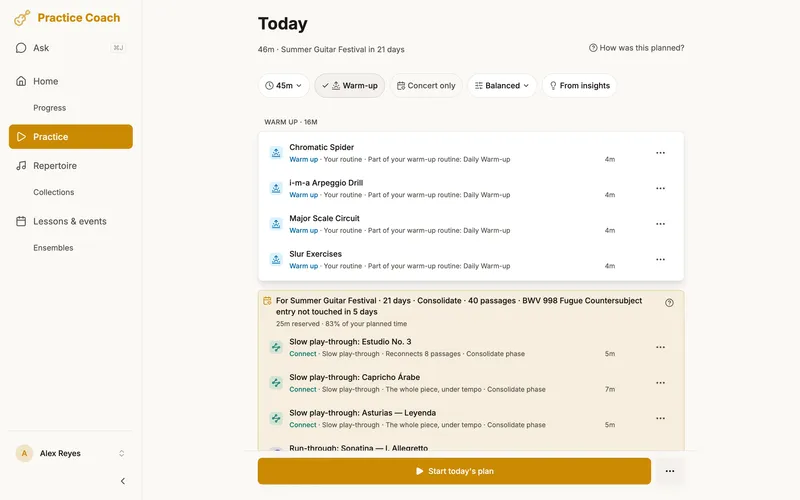
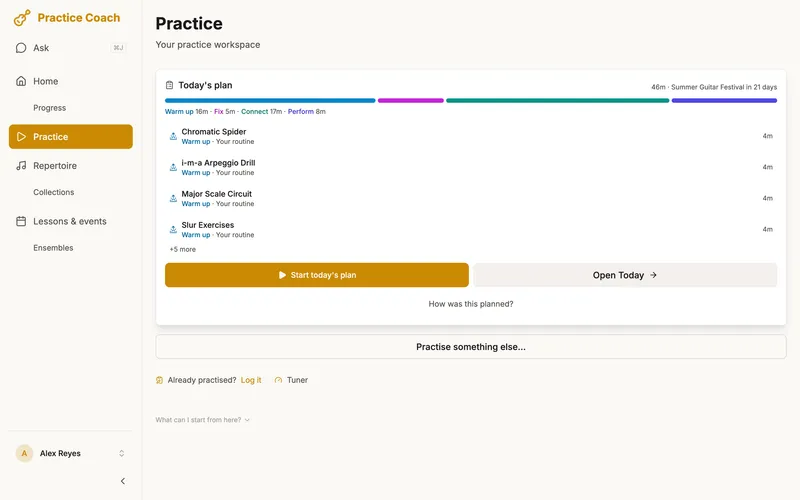
A fresh plan every day, built from your deadlines, the time since you last played each piece, your confidence and how far you are from your target tempo. Every item says why it's there.
The five blocks
Every plan runs in the same order: Warm up (your routine), Learn (new music), Fix (hard spots in music you already know), Connect (joining passages back up) and Perform (run-throughs).
Planning around your gigs
Link pieces to a concert, rehearsal or lesson and they get time in your plan from three months out, growing as the date gets closer. In the run-up the plan sets weekly tempo targets, and in the last ten days it brings back tricky passages and anything rated Rough or below. Switch on Concert only, Rehearsal only or Lesson only to drop everything else until the day.
Daily Essentials
Pin the pieces, passages or exercises you want to play every day, and they go into the Warm up block of your plan.
Smart plan and Just fix
Tap Smart plan on a piece you're practising for a short plan built around where that piece is in its learning. Short on time? Just fix gives you about 15 minutes on the spots that need it most.
Warm-up routine
Build your own warm-up routine and drag its items into order. It opens every plan, and Edit routine on the Practice page changes it.
BPractise
Everything you need in the practice room
The tools you reach for mid-session, in one place.
The practice bar
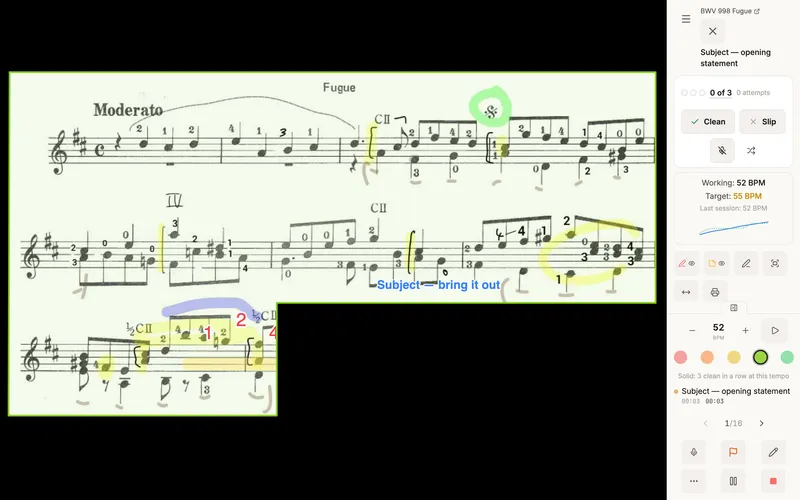
Tempo, the metronome and five confidence circles sit along the bottom of every practice mode. One tap rates what you're playing, in words from Shaky to Nailed.
Fix counter
Count clean takes in a row on a passage: three to move on, five for a tricky one, or your own target. Reach it and the app offers +5 BPM.
Scores and Passage Mode
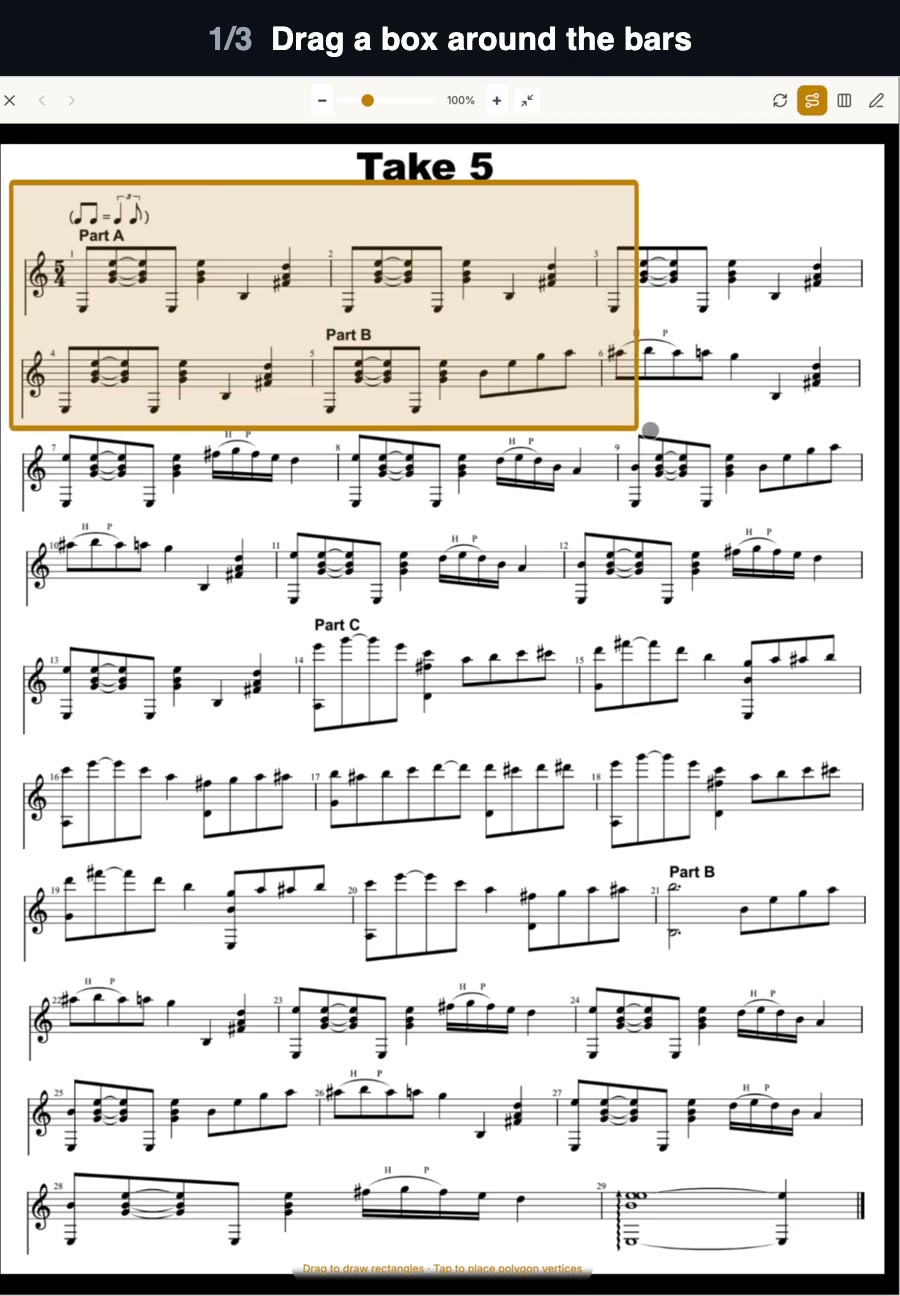
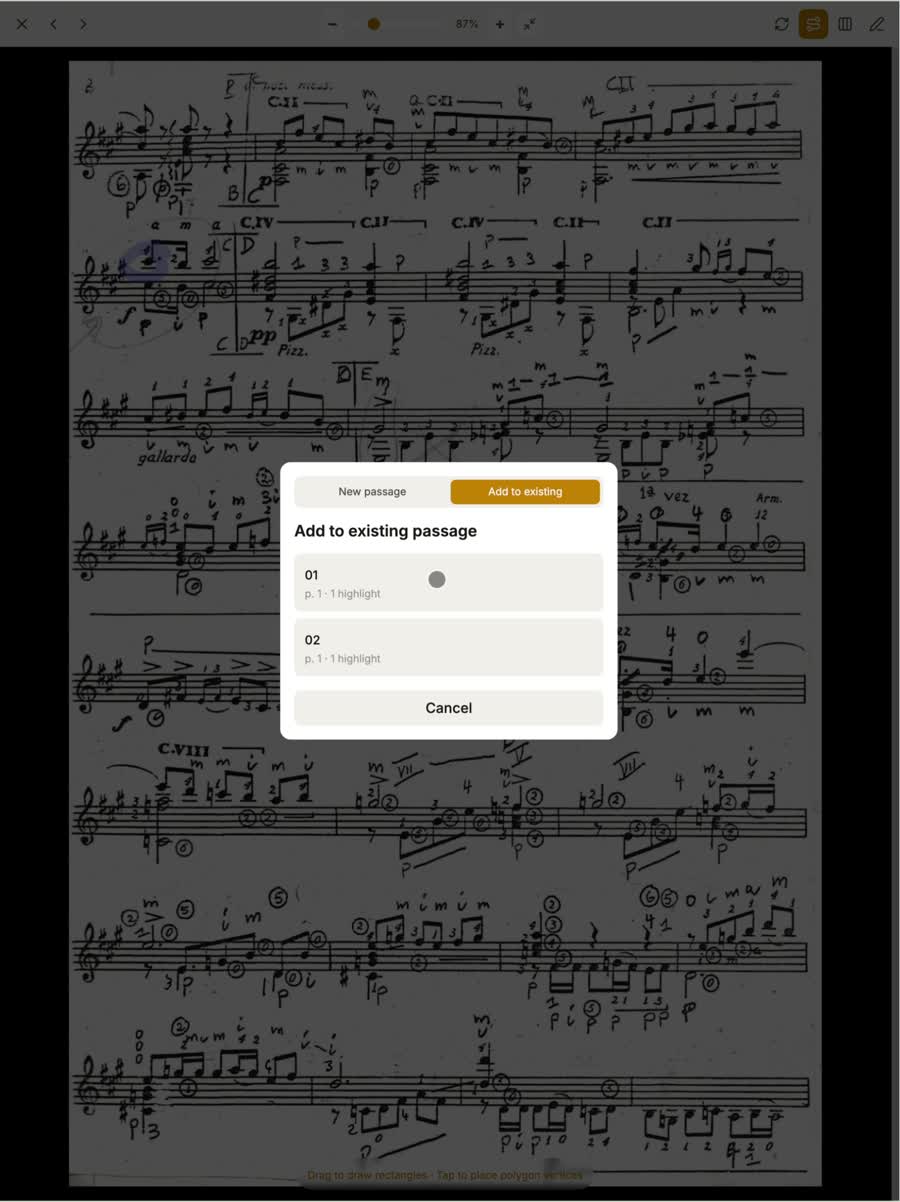
Upload a score from your device or Google Drive, or import a PDF and the app reads the title and composer off the first page. Mark a passage on the page and Passage Mode crops the score to just that passage.
Whole piece and passage
Playing the whole piece and want to work on one spot? Tap Passages on the score and pick one, then Back to whole piece when you're done. Nothing is added to or skipped from today's plan.
Annotation, by finger or stylus
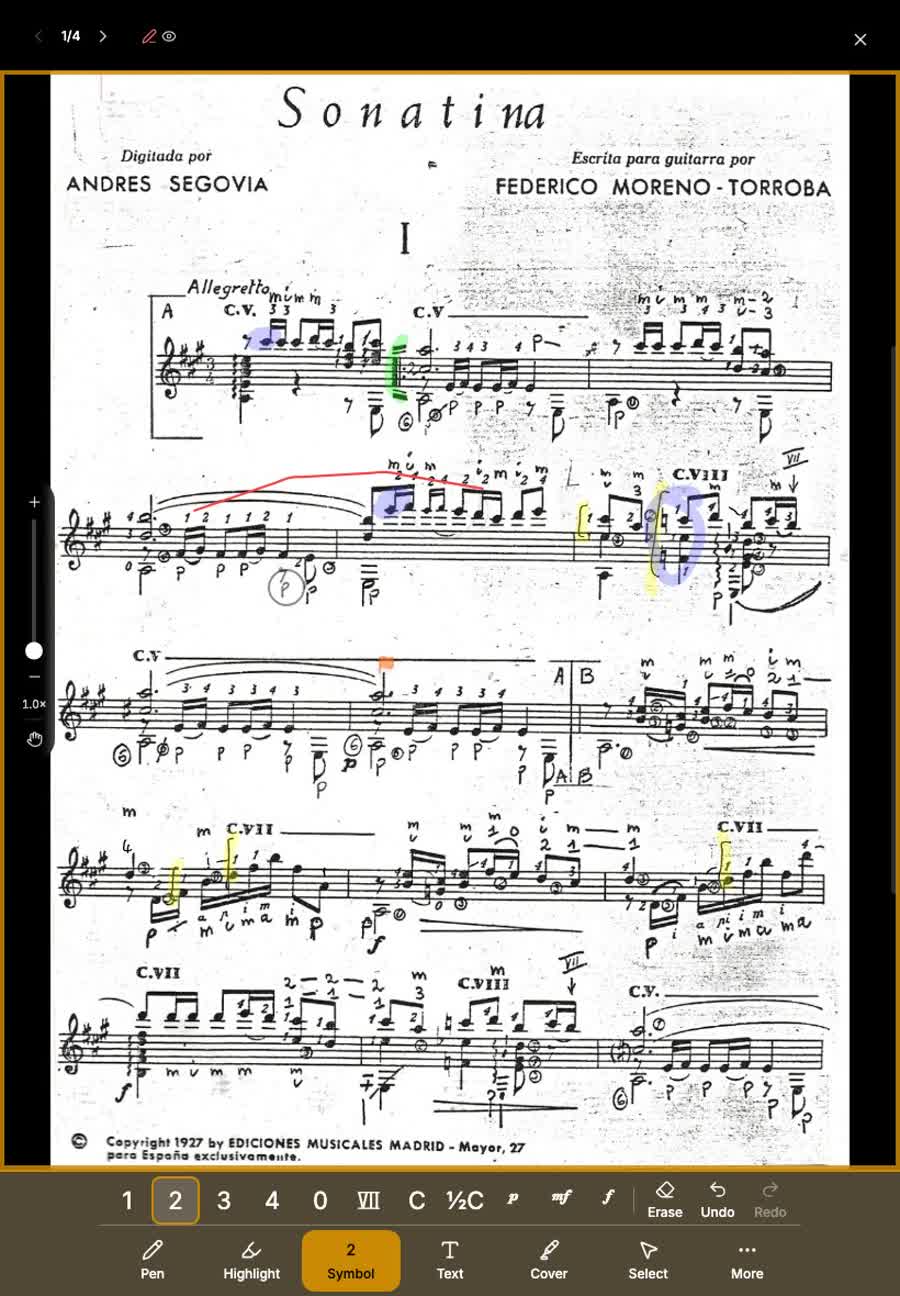
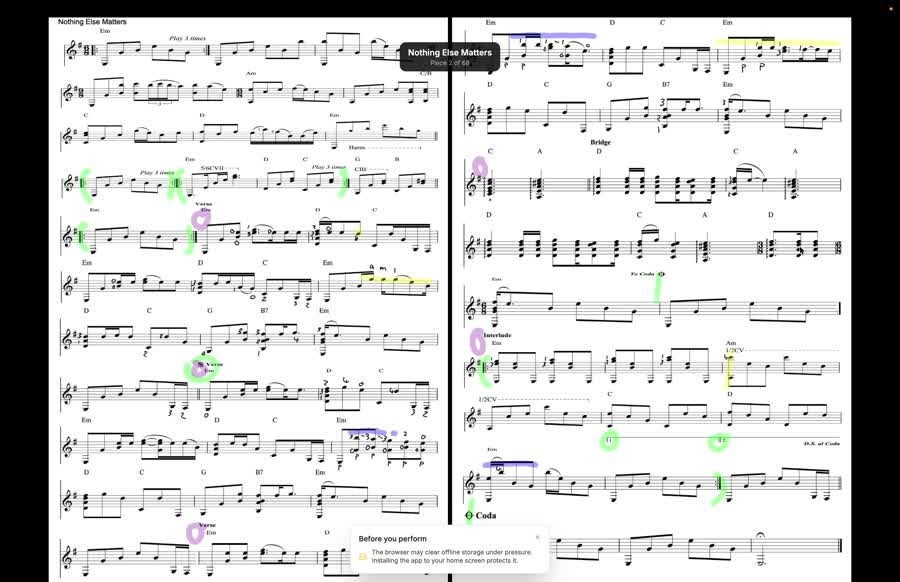
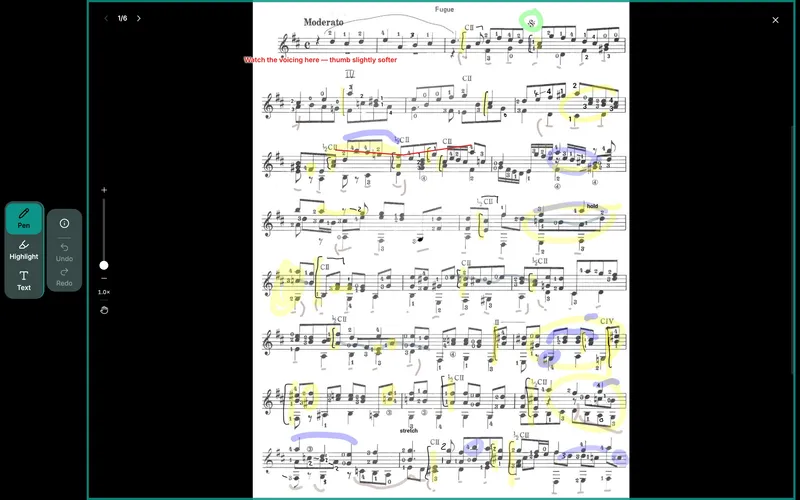
Write fingerings and music symbols on your score with a finger or a stylus. Switch on Draw with stylus only and your fingers move the page instead.
Recordings
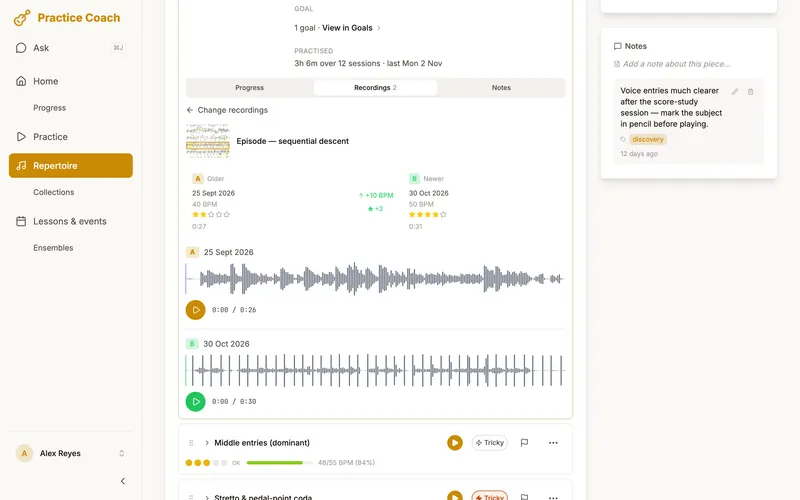
Record a passage and compare two takes side by side, each with the tempo and confidence it was recorded at.
Tuner and metronome
A chromatic tuner with transposition, and a metronome with an optional visual beat that flashes the pulse when you would rather see it than hear it.
Mental practice
Score study and guided visualisation for a passage, for the minutes away from the instrument.
CPerform
Ready for the stage
Play from the score, take it offline, and catch what went wrong without stopping.
Perform mode
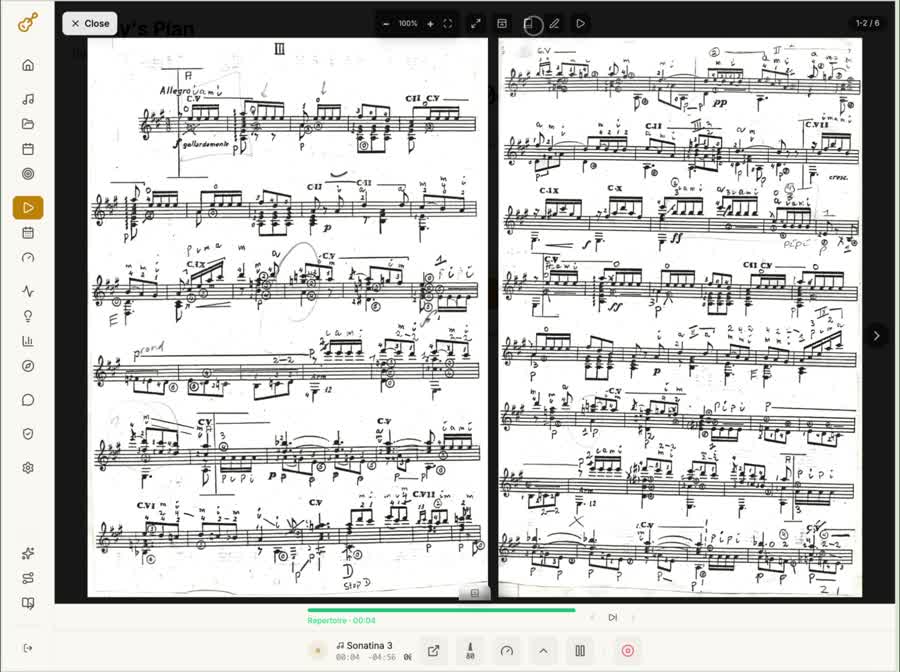
Play from the score with page turns by tap, swipe or a Bluetooth pedal. Turn the tablet sideways for two pages at once, and hold a page for about a second to mark it up without leaving.
Download for offline
Download a piece or a whole setlist before you leave, so the music opens with no signal at the venue. Downloading needs a connection.
Run-throughs
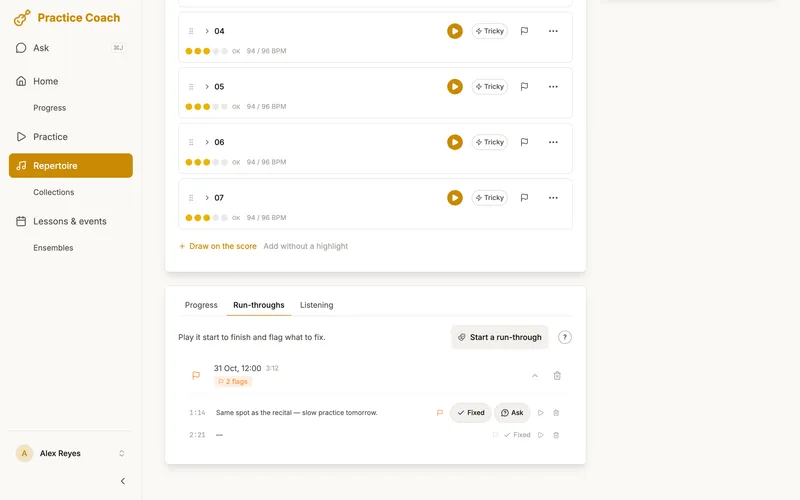
Play straight through without stopping and say "flag that" when something goes wrong. Each flagged moment is saved as a short clip, and you hear it back as you mark the spot on the music.
Flags
Find it, fix it, check it holds. Flag a mistake in two taps: the flag on the practice bar, then the spot on the music. Practise this flag drills just that spot, and the flag stays open until you mark it fixed. If the mistake comes back, It's back reopens the same flag, and each flag keeps its history. Passages with open flags go first in the Fix block of your plan, and the plan says why.
DTrack
Know exactly where you stand
Granular tracking that gives you a realistic picture of where your playing actually stands.
The Repertoire map
Your whole repertoire, one constellation
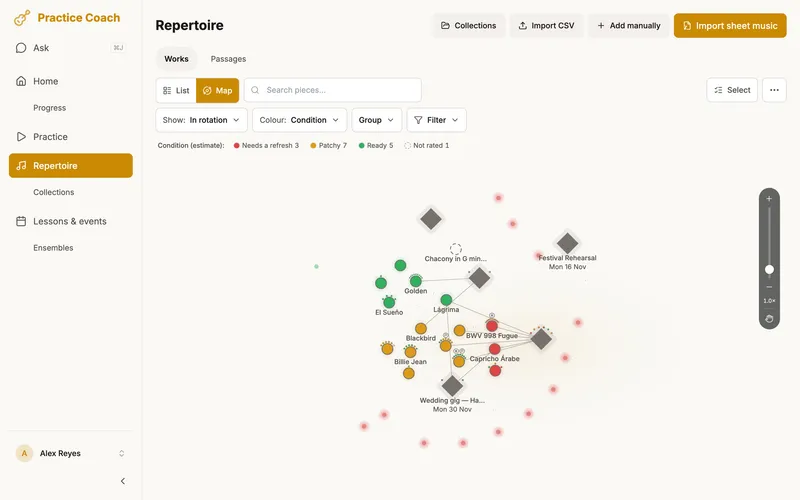
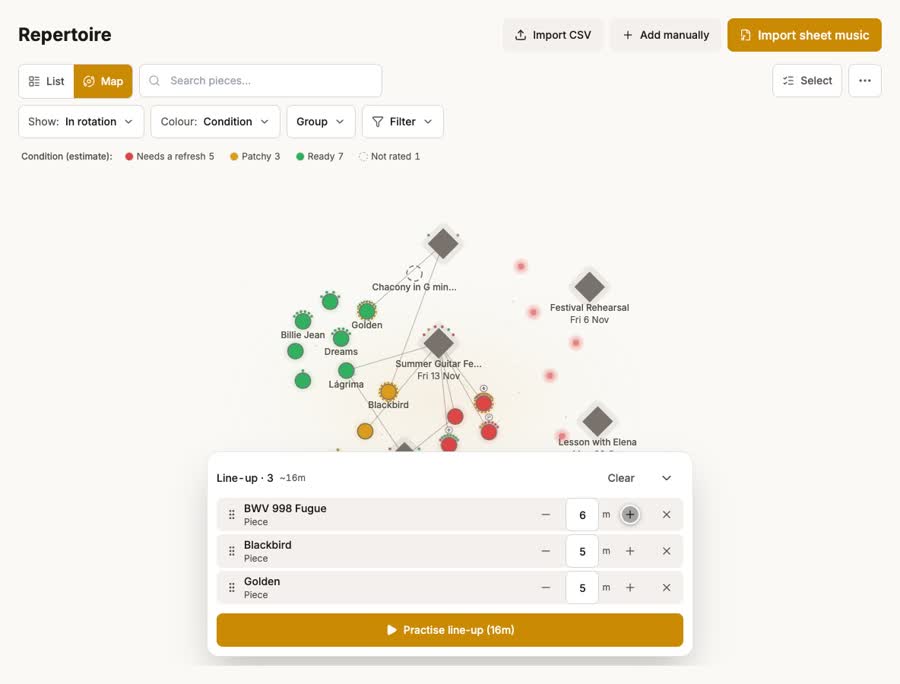
The Repertoire map shows every piece you play at once. Its colours follow the lens you choose, so one glance shows what needs you across your whole repertoire, not just the pieces you happen to remember.
- Colour it by condition, up next, confidence, tempo, last played or learning stage
- Spot a piece that’s starting to fade with the Condition or Last played colours
- Tap a piece to start practising it, or add pieces to your line-up and practise them in one session
Passages
Track passages separately from whole pieces. Each passage has its own confidence rating, tempo and practice history, so one weak passage can't hide behind four strong ones.
Confidence at tempo
A passage can be Nailed at 80 BPM and Rough at 100. The app keeps both, so the plan works on what is really weak. How confidence and tempo work
Condition
Ready, Patchy or Needs a refresh on Repertoire: an estimate of how a piece would go if you played it now, from your last rating and the time since you played it.
Progress
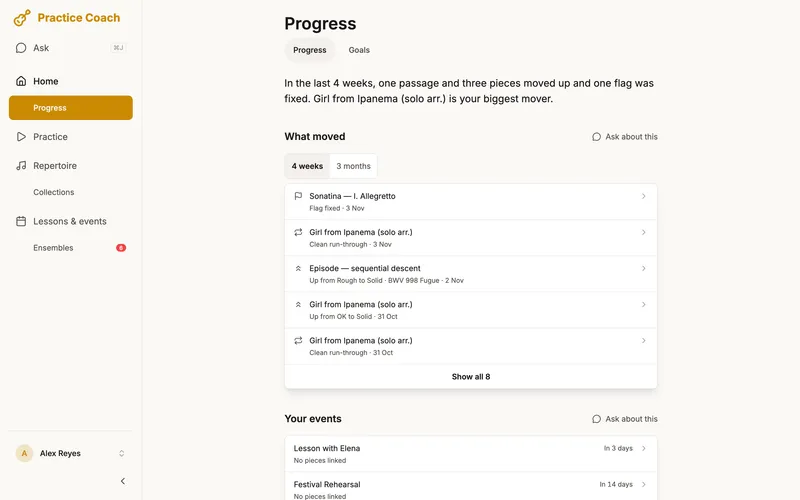
Progress leads with what got better: ratings that went up, tempo gains and flags you fixed. Then how your events are going and where your passages stand. The days and time you practised are there too, as context, with a practice calendar of your sessions.
Session summary
After every session: what changed, such as a passage that moved up or a flag you fixed, and what happens next. Stage suggestions and goals sit under Details.
Goals
Set a tempo target, a confidence target or both, such as 96 BPM by the concert.
Daily goal and days practised
Set a daily practice target and see today's minutes against it. This week counts the days you practised against your own schedule, not out of seven. Both are context: Progress leads with what got better.
Research on practice suggests that time spent is a weak guide to progress: among 17 advanced pianists learning the same passage, practice time and the number of repetitions did not relate to how well they played it the next day, and how they handled errors did. (Duke, Simmons & Cash (2009), “It’s Not How Much; It’s How”, Journal of Research in Music Education 56(4), 310–321.)
ETeacher and ensemble
Work with your teacher and the people you play with
Your teacher teaches, the app organises, and your music travels with you.
For my lesson
Questions you save for your lesson, and flags you tap Ask my teacher on, gather in one list on Lessons & events. It's your list: nothing is sent.
Your teacher's assignments and markings
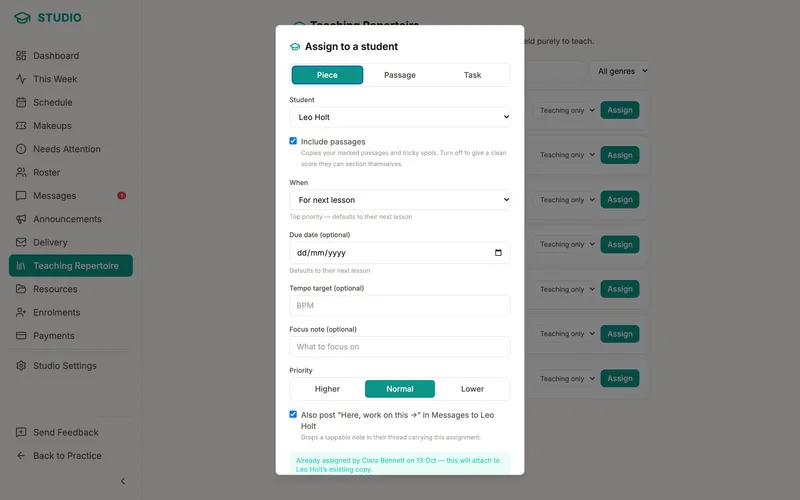
If your teacher uses Practice Coach Studio, the pieces, passages and tasks they assign arrive in your own plan, and their markings sit on their own layer on your score.
Ensembles
Share a score with the people you play with. Each player adds their own copy and picks their part, the sharer's markings arrive as a layer you can read, and the piece gets a shared passage map.
Readiness, by choice
Each player chooses whether to share how they're getting on. Those who do appear on a readiness board for the shared music, passage by passage. It ranks passages, never players, and anyone who stays out shares nothing.
Teaching a studio? See Practice Coach for teachers.
FEverywhere
With you wherever you practise
On the web and Android. iPhone coming soon.
Ask
Ask from any page, by typing or by voice. It can add pieces, events and passages for you: one change comes with an Undo, several wait for you to confirm. Technique questions go to your teacher.
Practise offline
Practice time, ratings, flags and score markings saved without a connection stay on the device and sync when you're back online.
Web and Android
On the web and Android. iPhone coming soon. Your data syncs between your devices.
Sign in with email, Google or Apple
Use an email address and password, or continue with Google or Apple.